


Welcome to your academy help page

Academy now live!
Important note when logging in for the first time
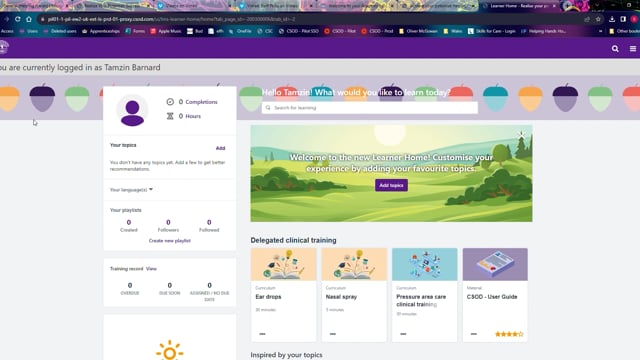
To log in for the first time, you cannot use the app.
You must visit helpinghands.csod.com and enter the default password: Helpinghands2025
Here you will then be asked to choose your own password. Once that is done you can log in as normal through the app.

Training Videos
Here you will see how to log in for the very first time.
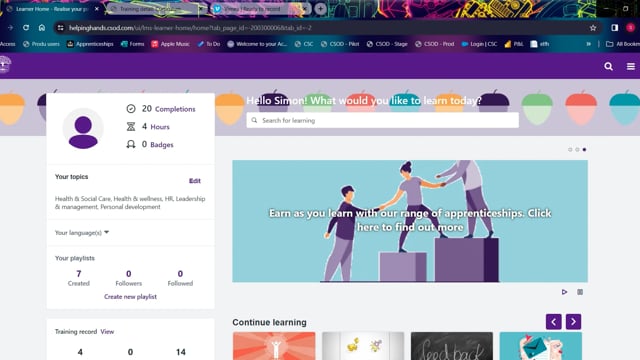
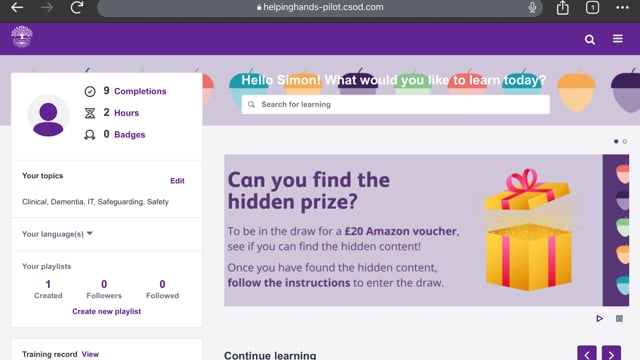
Once you have logged in and chosen your own password, you can then use the app. To find this, search for “Cornerstone Galaxy” in the App/Play Store.
The portal ID is: Helpinghands
This only needs to be entered once.
How to find your way around the academy app
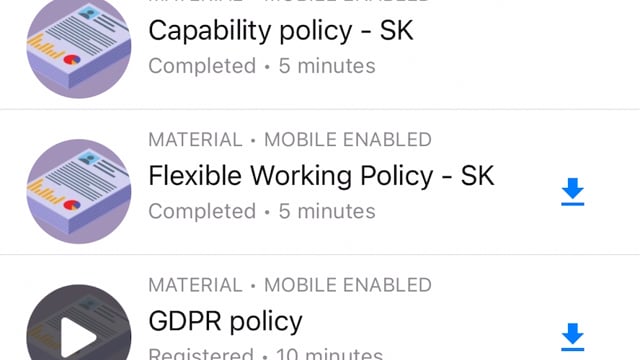
Marking items complete
Currently, some items need to be “marked complete”. These are mostly any document files. If you do not mark complete, the your training record will not show as complete. There will be an update later in the year to remove this need, but for now you will need to click mark complete on any documents.
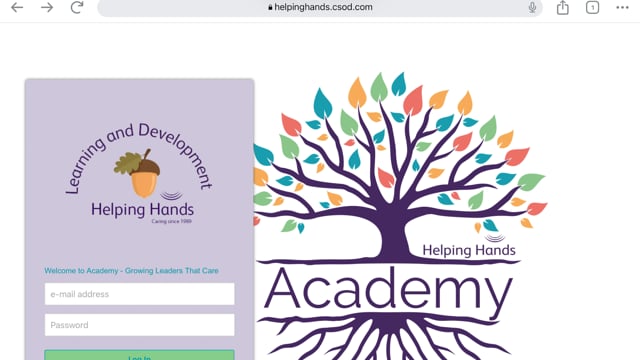
Log in on browser
You do not have to use the app, you can log in using your browser too. Simply head to helpinghands.csod.com & enter your username (email address) & password.
How to get your certificates
Currently, certificates can only be found in the browser and not the app. Log in through your browser & head to the training completion page to download your certificate whenever you may need it.
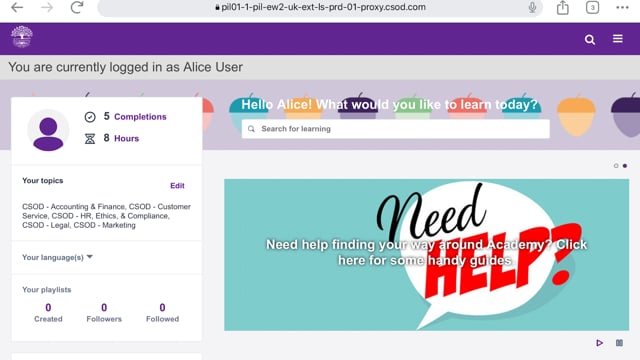
How to check teams access to academy
Getting you teams online at launch is really important to check that everyone can get online and so they can start to explore the content we have. Oh, and so you can check how your branch is looking for the incentive too! Please note only managers with direct reports can view this.
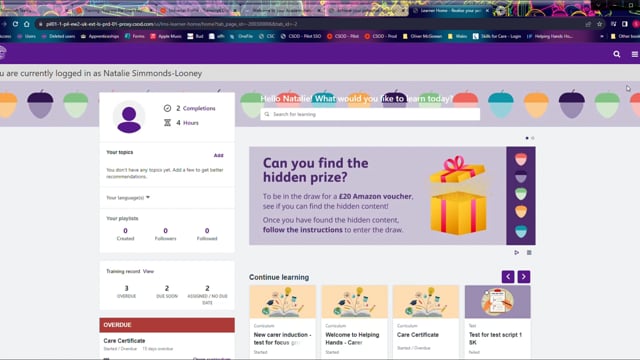
Booking onto training & webinars
All training sessions & webinars are booked and accessed in Academy now. Either go Learn > Events calendars (here you can filter out what you are looking for), or you can click into sessions directly in a curriculum if the training is part of a curriculum you are doing. For example – induction webinars as part of your branch induction.
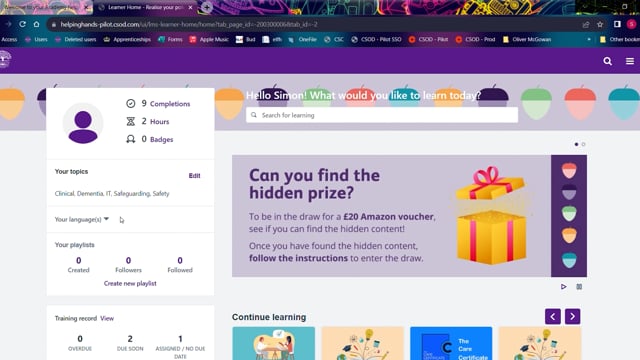
Assign training
You can now assign training based on individual & customer needs. Here we will show you how to do this & how to add due dates to assignments.
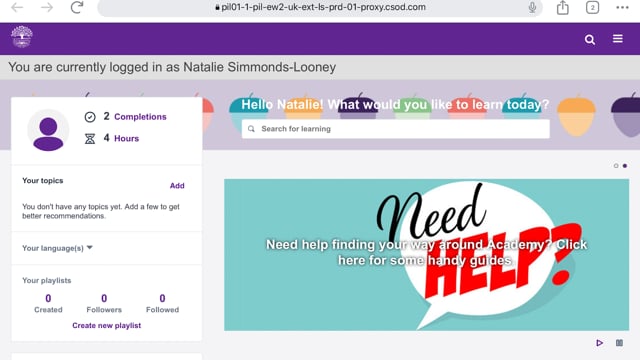
Playlists
Anyone can create their own playlist which they can share with others and will also be searchable by anyone else. Note that this is NOT an assignment to goes on peoples record to be completed. Playlists should only be used to create recommended learning to others. Completion of items in playlists does however record on training records.
Clinical training
Here you will see how a learner completes clinical training and how the training is marked as complete by observation. Please note carers must complete the confirmation to complete this as a valid piece of training.
Notifications
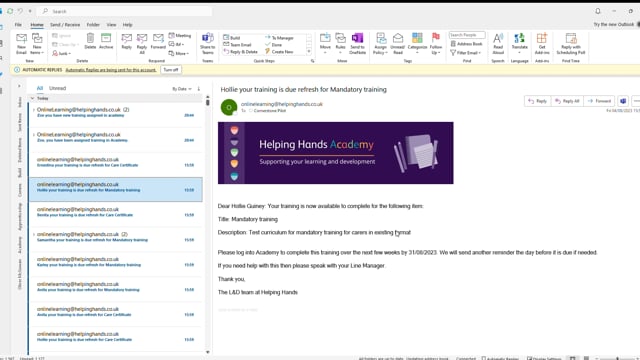
Notification will be sent via both email & app notifications. Managers will now get 1 single weekly training summary, plus any urgent notifiations such as for overdue training only.
Express overview
Overview of the express class function

Express class in academy
A demonstration of how to use express class in academy. Select your users and chose “bulk record” to add the same notes and files to all users on the session.
New starter induction
Here you will see which training is to be completed by someone new to the business
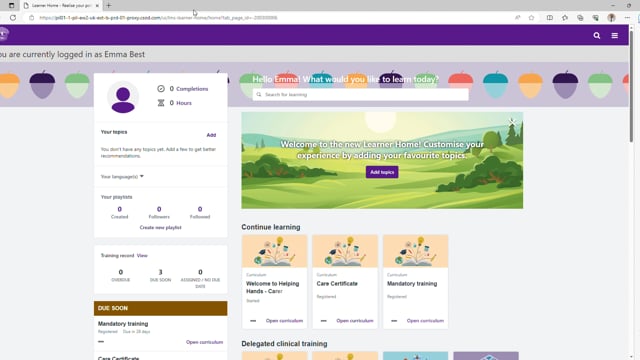
New starter checklists & shadowing
Here you will see that all new starters have actions to be completed by the manager & how to complete shift shadowing in LMS.
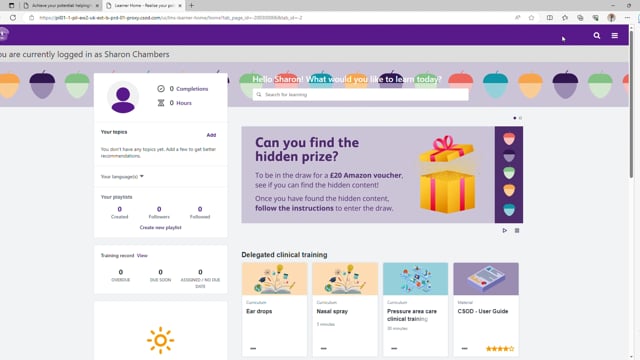
Training records
Here you will see how to view training records for your team, view their active & completed training as well as their training details

LICM’s only
Due to the SelectHR structure, LICM’s have to find their carers in a slightly different way. Also, to assign training you need to use the Learning Assignment Tool as shown here. Remember, the carer themselves can always register for training to save you having to assign it for them (such as clinical training).
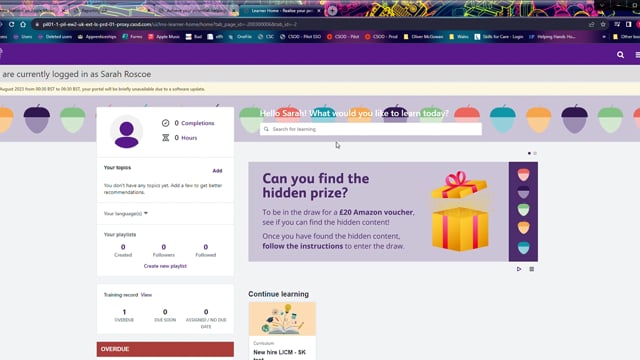
Reporting 2.0
There is additional reporting functions in Academy on top of the existing 08.10 dashboard. Here you will see how to view team training & your new starter progress. More reports will become available over the coming weeks so keep an eye on the bulletins for updates!

Academy FAQ’s
First thing to check is – are logging in via the browser for the first time and NOT the app. When you log in for the first time with the default password – Helpinghands1989! – you need to set your own password. This has to be done on the web browser so use safari or chrome on your phone as normal. Helpinghands.csod.com
Due to a couple of things that are not really clear in the app (marking complete & confirmations), we advise that people just log in using their browser on their phone at Helpinghands.csod.com Enhancements are due this year to make for a better app experience.
Whilst we await this update, we have removed the “download app instructions” from the new starter welcome emails for you.
The update will be with you soon and will cascade in the bulletin once fully tested and live.
Don’t worry, we have reduced the lock out setting if this happens to just 5 minutes. Make your self a cup or tea and try again 5 minutes later! If you still can’t get on the reach out to L&D and we will set a new password to access
(eg. How many parts of the care certificate have been done so far?)
Go into the carers training record as normal. Select the small drop down arrow on the training and you will see the actual progress and what needs completing
This is mostly because there was no sign off record in ACP when we moved the data over. Don’t worry – the training completed will have carried over, the branch staff just need to complete the sign off which now sits in Academy.
You can see all of the team. Remember the data is driven by SelectHR and carers report into the CCo.
You can view each record by typing in the carers name in the top right box, the same as a Care Co would.
All CTP’s have the same level of access with the sole exception of specifically assigning EXTRA training. Only 1 CTP per site can do this due to how SelectHR is configured (if you wish us to change who this is – let us know and we can do that for you).
You can all still view training and complete all required sign offs, so there is no less access for you than there was in Learning Pool.
If you need them to do extra training, you can:
a) Ask the carer to find the training and start it, the same way you would do previously in Learning Pool.
b) Another branch team member can do the assignment.
This is all available and set up for all branch staff in reporting 2.0. You can download this to Excel and filter overdue training as you wish.
There is a mandatory report; this covers your REQUIRED training. There is also a “whole training” matrix which shows all available training that has been assigned/completed/overdue including all non-mandatory.
The only training that we mapped over was completion in People Planner. If you did not record this, then the training was not mapped. Provided your team have their completed training previously and have a signed TAC from that covers their clinical training. Make sure you enter this into People planner so that it flags for the annual refresh when needed. Then, they can complete in Academy as normal moving forward.
Shadowing is entered as per the cascade in Performance > Observation checklist. Ensure that you enter customer details and times in the observation notes section. You can add as many notes as you wish, as many times as you wish. You can also take a screen snip of their schedule from People Planner if you wish and attach it under “attachments”.
There may be an instance where someone was added a hire date just before we launched but actually started work after launch. Search for “Welcome to Helping Hands – Carer” and assign it to them with a due date of 3 months from hire date. Shadowing will then be available to record.